1.Switch to welcome screen
Press Win+L to switch to the Welcome screen.
2.Lock your workstation
Press Win+L to lock your workstation.
3.Switch user easly
You can switch users without going through the Welcome screen: From Task Manager, go to the Users tab, right-click a user, and select Connect.
4.Hibrernate computer
Hold down the shift key in the shutdown dialog to change "Stand By" to "Hibernate". Or just press H to hibernate instantly. You can even use the Power Control Panel to configure your power button to hibernate.
5.Disable password when resuming stanby
To disable the password when resuming from standby or hibernation, open the Power Control Paneland uncheck "Prompt for password after returning from standby" on the Advanced tab.
6.Choose details
From the View Menu, select "Choose Details" to select which file properties should be shown in the Explorer window. To sort by a file property, check its name in the "Choose Details" in order to make that property available in the "Arrange Icons by" menu.
7.Display volume control icon in taskbar
To display the volume control icon in the taskbar, go to the Sounds and Audio Devices Control Paneland select "Place volume icon in the taskbar".
8.Delete file without send into recycle bin
Hold down the shift key when deleting a file to delete it immediately instead of placing it in the Recycle Bin. Files deleted in this way cannot be restored.
9.Customize 'send to' menu
Put a shortcut to your favorite editor in your Send To folder and it will appear in your "Send To" menu. You can then right-click any file and send it to your editor.
10.Organize favorites
a) To organize your Favorites in Explorer instead of using the Organize Favorites dialog, hold the shift key while selecting "Organize Favorites" from the Favorites menu of an Explorer window.
b) You can organize your Favorites by dragging the items around your Favorites menu.
Alternatively, you can open the Favorites pane and hold the Alt key while pressing the up and down arrows to change the order of your Favorites.
11.View IE in fullscreen
To run Internet Explorer fullscreen, press F11. Do it again to return to normal mode.
12.Hide printers & faxes
If your "Printers and Faxes" folder is empty, you can hide the "Printers and Faxes" icon when viewed from other computers
by stopping the Print Spooler service.
13.Add/remove columns from detail mode
To add or remove columns from Details mode, select Choose Details from the View menu, or just right-click the column header bar.
14.Go backwards or forward by mouse wheel
In Internet Explorer, hold the Shift key while turning the mouse wheel to go forwards orbackwards.
15.Add current page to favorites
In Internet Explorer, type Ctrl+D to add the current page to your Favorites.
This and many more keyboard shortcuts can be found by going to Internet Explorer, clicking the Help menu, then selecting Contents and Index. From the table of contents, open Accessibility and click "Using Internet Explorer keyboard shortcuts".
16.Shut down via Remote Desktop
To shut down via Remote Desktop
, click the Start button, then type Alt+F4.

Windows key Shortcuts
 ------------ Start menu+ D --------- Show Desktop + Tab------- Moves through the task bar buttuns+ L--------- Shows the welcome screen/Lock the machine. + M--------- Minimize all window+ E---------- Opens Explorer+ R---------- Opens 'RUN' Window + U---------- Opens Utility Manager+ F---------- Opens Search window + Break------ Show system properties + Shift+M---- Undo minimize all windows + F1--------- Display "help and support center"+ Ctrl+F----- Display search for computers
You Cannot Create a Folder Named CON !!
It is fact that you cannot create a folder named "CON", nor can you rename an existing folder to "CON". "CON" and a number of other character strings are in fact reserved names that go back to the days of DOS and cannot be used to name folders or files.
Other reserved names are:
* PRN
* AUX
* NUL
* LPT1
* COM1
* Potential drive letter - A: to Z:
* A number of others
If you try to name a folder using one of these reserved names, the name will automatically revert to the default, generally "New Folder". Moreover, if you try to use a reserved name to name a file such as a Notepad or Microsoft Word document you will generally receive an error message similar to the following:

Depending on exactly how you save the file, you may instead receive a warning message advising that a file with that name already exists. However, even if you choose "Yes" to overwrite the existing file, you will still not be allowed to save the file.
-: Chat with Friends through ms dos Command Prompt :-

1) All you need is your friend's IP Address and your Command Prompt.
2) Open Notepad and write this code as it is.....!
@echo off
:A
Cls
echo MESSENGER
set /p n=User:
set /p m=Message:
net send %n% %m%
Pause
Goto A
3) Now save this as "Messenger.Bat".
4) Open Command Prompt.
5) Drag this file (.bat file) over to Command Prompt and press Enter.
6) You would then see something like this:
7) Now, type the IP Address of the computer you want to contact and press enter
You will see something like this:
8) Now all you need to do is type your message and press Enter.
Start Chatting.......!
Folder Lock With Password Without Any Software

Folder Lock With Password Without Any Software-
Paste the code given below in notepad and 'Save' it as batch file (with extension '.bat').
Any name will do.
Then you see a batch file. Double click on this batch file to create a folder locker.
New folder named 'Locker' would be formed at the same location.
Now bring all the files you want to hide in the 'Locker' folder. Double click on the batch file to lock the folder namely 'Locker'.
If you want to unlock your files,double click the batch file again and you would be prompted for password.
Enter the password and enjoy access to the folder.
if EXIST "Control Panel.{21EC2020-3AEA-1069-A2DD-08002B30309D}" goto UNLOCK
if NOT EXIST Locker goto MDLOCKER
:CONFIRM
echo Are you sure u want to Lock the folder(Y/N)
set/p "cho=>"
if %cho%==Y goto LOCK
if %cho%==y goto LOCK
if %cho%==n goto END
if %cho%==N goto END
echo Invalid choice.
goto CONFIRM
:LOCK
ren Locker "Control Panel.{21EC2020-3AEA-1069-A2DD-08002B30309D}"
attrib +h +s "Control Panel.{21EC2020-3AEA-1069-A2DD-08002B30309D}"
echo Folder locked
goto End
:UNLOCK
echo Enter password to Unlock folder
set/p "pass=>"
if NOT %pass%==type your password here goto FAIL
attrib -h -s "Control Panel.{21EC2020-3AEA-1069-A2DD-08002B30309D}"
ren "Control Panel.{21EC2020-3AEA-1069-A2DD-08002B30309D}" Locker
echo Folder Unlocked successfully
goto End
:FAIL
echo Invalid password
goto end
:MDLOCKER
md Locker
echo Locker created successfully
goto End
:End
facebook templates
How to Change Facebook Layout or Facebook Template – To change Facebook layouts actually is easy and can be done with just a few steps. To change the layout of Facebook, users should allow Yantoo Layers application as layout sources for your Facebook template.
How to Change Facebook Layout
Ok here’s the steps to change the display Facebook Layout:
1. Log In / Login to your Facebook account
2. Install Plugins Add-on Yontoo Layers in www.yontoo.com/install.aspx, the select Firefox (windows or Mac)
3. Select “accept & continue” in the new Terms of Service
4. Install Yontoo Layers for firefox, after “Ready” is checked, click “Start Install”
5. Click “Allow” in the upper-right corner
6. Click “Install now”, and then “restart Firefox”
7. The following steps, please Login to your Facebook Account,
8. Then click on the link http://apps.facebook.com/pagerage/
9. Then please click “Allow”.
10. Now you can choose Facebook Layout that you want, click to select the layout on the link “select” in the image layout.
That’s how to change display Facebook layouts, and later We will show how to change Facebook Background and share list Web sites of Facebook Layouts sources.
How to Change Facebook Layout
Ok here’s the steps to change the display Facebook Layout:
1. Log In / Login to your Facebook account
2. Install Plugins Add-on Yontoo Layers in www.yontoo.com/install.aspx, the select Firefox (windows or Mac)
3. Select “accept & continue” in the new Terms of Service
4. Install Yontoo Layers for firefox, after “Ready” is checked, click “Start Install”
5. Click “Allow” in the upper-right corner
6. Click “Install now”, and then “restart Firefox”
7. The following steps, please Login to your Facebook Account,
8. Then click on the link http://apps.facebook.com/pagerage/
9. Then please click “Allow”.
10. Now you can choose Facebook Layout that you want, click to select the layout on the link “select” in the image layout.
That’s how to change display Facebook layouts, and later We will show how to change Facebook Background and share list Web sites of Facebook Layouts sources.
How to Change Removable Disk Default Icons..
If you are bored seeing the default look of removable drives in Windows, here PCtricksgsm.blogspot.com got the solution, The Removable drive looks like this ok this is the default icon so lets make an interesting deferent come on join with us.... follow these simple steps..
 ok this is the default icon so lets make an interesting deferent come on join with us.... follow these simple steps..
1. First step is to find a good icon which will represent the removable drive. Make sure that the image has .icoextension. here get some grate look .ico files http://www.iconarchive.com/
2. Open Notepad. Type in whatever is given in the image.

Here Label denotes the text which you want to display in My Computer when the drive is connected and Icon represents the icon image name. Save this file as autorun.inf.
3. Copy both files (autorun.inf and Icon file) to your removable drive. You can make both files as hidden, if don’t want to see those files when you are connected to drive
Now unplug the drive and connect it back to USB and now you can see the effect of your customizations.
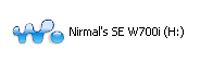 :) here u got that enjoy
http://pctricksgsm.blogspot.com/ http://pctricksgsm.blogspot.com/ http://pctricksgsm.blogspot.com/ http://pctricksgsm.blogspot.com/
Subscribe to:
Posts (Atom)
